Setting up bands
Turn on Shared turns and bands in the settings first. Then use automatic groups, the Groups and bands window, or both.
Automatic groups
Add minions to a combat and roll initiative as usual, without opening any window. Minion! groups the minions for you, as long as nobody in that combat has rolled initiative yet.
- Minions of the same kind are grouped in blocks of the maximum band size for their challenge rating. Seven goblins with a maximum of 5 become 5 + 2.
- A new minion first fills a group of its kind that still has room. A group with minions of more than one kind is never touched.
- A single minion left over stays alone, and joins the next minion of its kind that you add.
- Minions with no challenge rating are never grouped, and neither are minions the Groups and bands window added alone.
- Once anyone in the combat has an initiative value, even a player character, nothing more is grouped automatically.
An automatic group is named after the minion, and has no color and no captain. Give it both in the Existing bands tab before the roll. Without a captain, the captain's roll mode can't set the group's initiative.
The Groups and bands window
Use the window when you want to choose the bands, their names, their colors and their captains yourself. It also works in the middle of a fight, to bring in a new horde.
- Place the minions on the scene. To use only some of them, select those tokens.
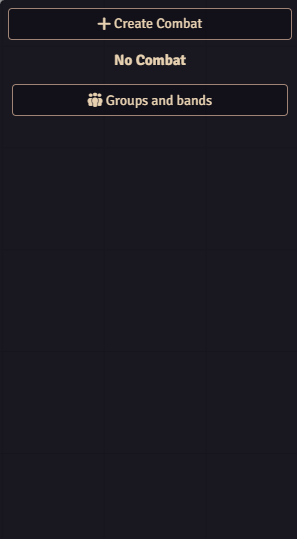
- Click Groups and bands in the combat tracker. Only the GM sees the button, and only while Shared turns and bands is on.
- If any minions are selected, the window asks Do you want to use only the selected monsters? Answer Yes, only the selected ones or No, all the ones in the scene.
- The window has one tab per kind of minion. Minions already in the combat, and minions with no challenge rating, aren't listed.
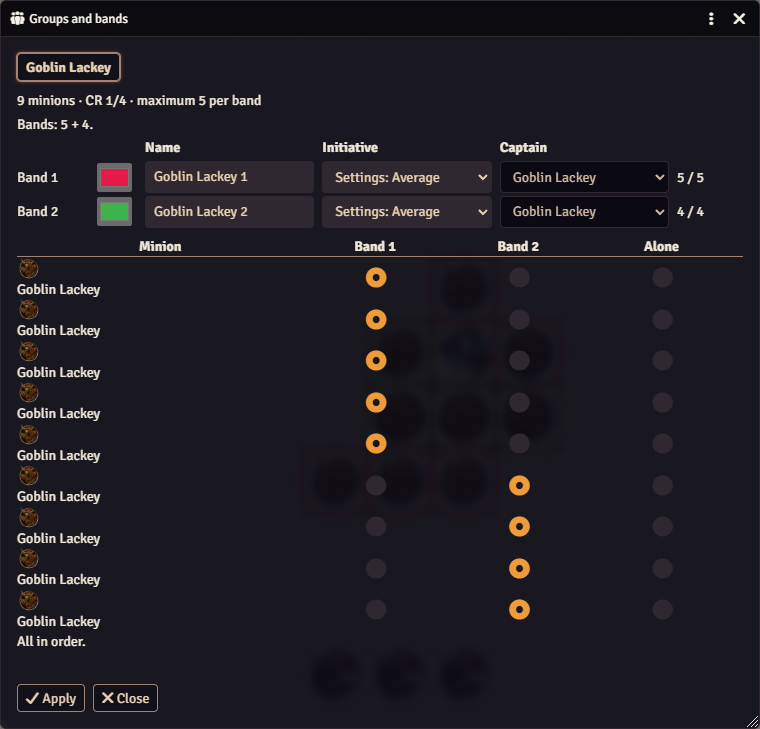
- Each tab starts with a summary, for example "9 minions · CR 1/4 · maximum 5 per band", and the proposed split, for example "Bands: 5 + 4."
- Adjust the bands. See below.
- Click Apply. If you set up more than one kind of minion, a confirmation lists the bands and the minions left alone for each kind. Minion! then adds everyone to the combat, and creates the combat if there isn't one. Apply never rolls initiative.
- Roll initiative as usual.
What you can change
| Control | What it does |
|---|---|
| Name | The band's name in the tracker. It can't be empty. |
| Color | The band's color on the map. New bands get colors no other band is using. |
| Initiative | How the band's initiative is decided. Settings follows the world setting. See Initiative and captains. |
| Captain | The member whose roll counts for the band. It starts as the first member. |
| Member grid | Each minion has one button per band and one for Alone. Click one to move the minion there. |
Band sizes follow the band size table: full bands of the maximum size, then whatever is left as a smaller band, and a single minion left alone. You can move minions around, but each band must keep its size. Each band row shows its count, for example 5 / 5. When a count is wrong, the window says "Band 2: it needs 5 members, it has 4." and "Fix the errors to be able to apply."
Bands of any size
Free band sizes and an Add band button are on the roadmap.
The preview on the map
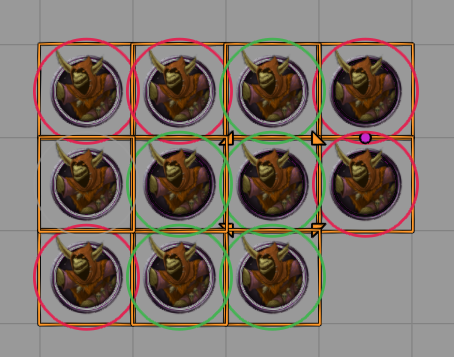
While the window is open, a ring in each band's color marks its members on the scene, and a thin grey ring marks each minion staying alone. Point at a minion's row in the window and its ring gets thicker.
If tokens change while the window is open
If a token is deleted, or added to the combat some other way, the window names it and blocks Apply. Close the window and open it again.